 -
PGR
-
PGR
TUTORIAL
Welcome to this RAPID-PGR Tutorial
This is intended to be a quick introduction to RAPID-PGR. It is your online Personal Development Planning (PDP) tool.
It's one of those things - we all agree that PDP is a good thing and really should help us develop, but when we get down to it, can we really be bothered with all that fuss?
This tutorial hopes to show you that RAPID-PGR can help with this dilemma.
1.0 Before looking at RAPID-PGR
Have you worked through "Meeting the skills training requirement" online course for PGRs?
No?...
...well it might be a good idea to do so.
This will give you a clear picture of the transferable skills training requirement. It should take you around 2 - 2.5 hours and will give you a full overview of the process.
It also gives you the chance to undertake a personal Training Needs Analysis so that you can identify for yourself where your training and development needs are greatest. There is also lots of useful information about how you can access training and development opportunities while you are at Loughborough.
2.0 Now for RAPID-PGR
Now you have your own 'Personal Profile' training needs analysis, you can get down to some real PDP.
Enter Rapid-PGR
The first menu is shown below in Figure 1.
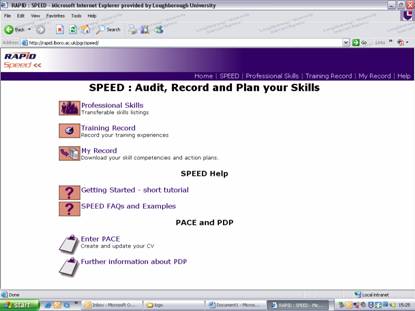
Figure 1. RAPID-PGR Opening menu
As far as monitoring and planning your skills development is concerned the key bit of RAPID-PGR for you is SPEED.
SPEED has three key elements
- Professional Skills
- Training Record
- My Record
As well as this there is plenty of help detailed lower down the page.
Start with PROFESSIONAL SKILLS...
2.1 Professional skills
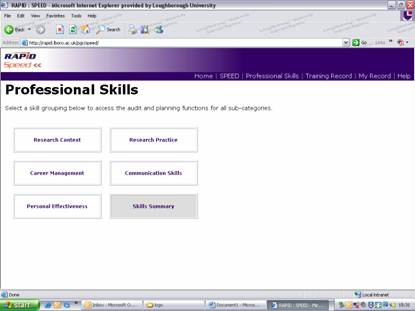
Figure 2. Professional Skills main menu
The professional skills main menu page (shown above in Figure 2), has six buttons.
There are five white buttons with the main skills groupings headings that you have on your Personal Profiler graph from the online course (similar to the Joint Skills statement headings, but a bit simpler),
- Research Context
- Research Practice
- Career Management
- Communication Skills
- Personal Effectiveness
and one grey Skills Summary button which you can ignore for now.
2.12 Where do I start?
It is probably best to start with the skill identified on your Personal Profiler graph as being that which you are least good at. For example, this might be Communication Skills, so click on the Communication Skills link.
You will see the Professional Skills Audit page shown in figure 3 below.
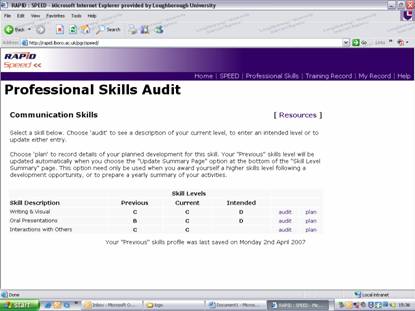
Figure 3. Professional Skills Audit
You will see that unlike the online course, there is now
more detail in this skills category. Communication skills is broken down into
three sub-categories
- Writing and Visual
- Oral Presentations
- Interactions with others
Against each sub category are three columns headed Previous, Current and Intended.
The idea is that you work through each of the three sub-categories in turn and "award" yourself a current skill level - to set up your baseline from which you will plan to improve your skills.
2.22 How do I audit my skills?
To the right hand side of the page you will see two options ‘Audit’ and Plan. Click Audit.
You will see a page that looks like Figure 4 shown below.
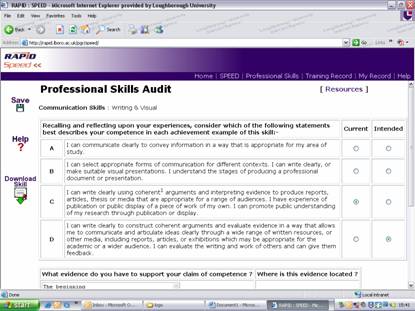
Figure 4. Professional Skills Audit
To remind you where you are it states at the top of the page the sub-category you have chosen (Communication Skills) and the break down section you have chosen (Writing and Visual)
You are presented with 4 descriptions A to D which might best describe your competence in this skill.
For general guidance, these levels have been set up as follows.
Levels A-B are typical of a new Postgraduate Research student
Levels B-C are typical of someone in the second year of their studies
Levels C-D are typical of someone nearing the completion of their Postgraduate studies.
Level D has been designed to indicate something to aspire to rather than achieve as a Research student.
Please note this is only for guidance and we recognise that PhD students often have a wealth of experience behind them which will override these assumptions.
Current Level
BE HONEST - consider which of the four statements most closely describes your current level of expertise in the skill. If you are unsure it is better to underestimate your level at this stage. Award yourself that level by clicking the radio button.
If you feel you are not yet an A then leave the current level selection blank.
Intended Level
You then need to consider what level you are aiming for in the next time period - this is usually one year ahead.
This will normally be the next level up. For example, if you are not yet an A for your Interactions with others skill, then your intended level may be to achieve an A in the next year.
However, It may be that you feel you are particularly poor at something and need to improve rapidly, so you may try to move up two levels in one year. In this case you may set your intended level for Interactions with others to be a B.
Alternatively you may be happy with your current level and not plan to improve it in the coming year - so you may have an intended level which matches your current level. For example if your current level in the skill Oral Presentations is a B because you have been in a work environment which developed this skill before you started your PhD, you may be happy to stay at this level in your first year so you can concentrate on improving other skills. In this case your current level and your intended level would be set at B.
You may want to discuss your choices with your supervisor.
SAVE your selections and you will move back to the main menu
2.23 What comes next?
Now you need to work out how you are going to improve your skills – to do this you need to Plan!
Click on ‘Plan’ and you will see a page that looks like figure 5.
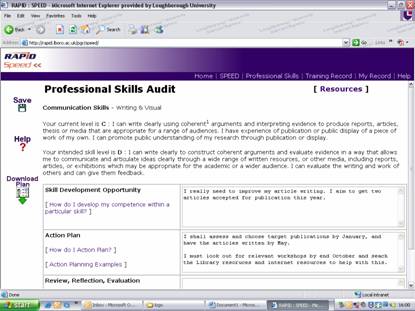
Figure 5. Planning
Detail your opportunities for development in the Skill Development Opportunity section (Use the RESOURCES link at the top of the page to help)
Outline what you are actually going to do (your actions) in the Action Plan section.
The Review, Reflection, Evaluation section is for you to look back on your actual success or otherwise in carrying out your plans to develop your skills.
Okay, now you are on your way. Complete these steps for all the skills and you are well on your way to becoming a fully fledged PDP user - don't forget to add this to your CV!
3.0 Other good things in RAPID-PGR
Skills summary page - lets you see all your skills and planned levels at once.
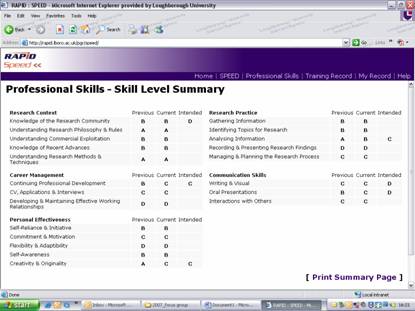
Figure 6. Skills summary page
Resources links - you will find these on quite a few pages - this takes you to a listing of ways in which you can develop your skills. Study aids from the Library and listings of workshops that you can attend to get you going.

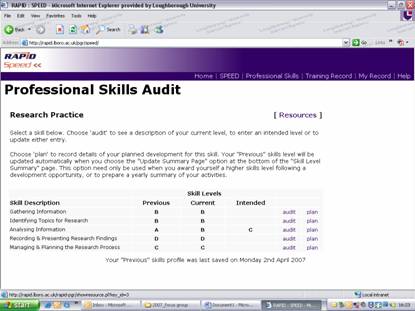
Figure 7. Resources Links
Yearly Updates
USE WITH CARE
A button to press once a year to update your skills level summary page to monitor whether you actually achieved what you intended in the previous year. Take a print out of this to your supervisor or progression panel.
I think I will leave the rest up to you - have a play and see what else you can find in RAPID-PGR...